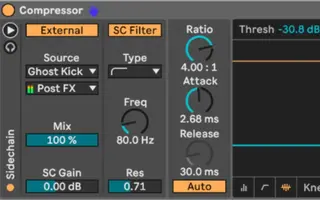
Sidechaining in Ableton Live 12 gets talked about constantly, but most explanations stop at the same surface-level walkthrough. Load a compressor, select a kick (if you need a few more great kicks, check out the free sample pack we made with Black Octopus), dial in some settings, and move on. That approach works, but it rarely explains why sidechaining feels inconsistent across projects or why certain tracks lose momentum the moment the kick drops out. In my own sessions, sidechaining plays a much larger role than volume control. I treat it as an arrangement and groove management tool that shapes how energy moves through a track from section to section. Ableton Live 12 makes this easier to manage thanks to cleaner routing and more predictable behavior across group tracks, but the real gains come from how you design the system rather than which device you load. Jump to these sectionsHow To Sidechain In Ableton 12: The BasicsWhy I Rely on a Ghost Kick for Sidechaining in Ableton 12Using Sidechain to Protect Groove and MomentumTrack-Level Sidechaining for Rhythmic DetailBus-Level Sidechaining to Lock Everything TogetherWhy Ghost Kicks Solve Inconsistent Sidechain BehaviorWhen I Avoid Compressor-Based Sidechaining EntirelySidechaining as an Arrangement Tool in Live 12Final Thoughts on Sidechaining in Ableton Live 12 This guide walks through how I actually sidechain in Live 12, why I rely heavily on ghost kick routing, how I approach track-level versus bus-level sidechain, and when I skip compressor-based sidechaining entirely. The goal here is consistency, flow, and control across an entire arrangement rather than chasing a single pumping effect. How To Sidechain In Ableton 12: The Basics Sidechaining, I would argue, is one of those mid-level mixing skills. If you’re still struggling with the basics, I would recommend checking out Native Instruments’ mixing guide, as it really does cover them better than anyone else. Sidechaining can sound complicated if you only ever hear it explained as “that pumping thing,” but the core idea is simple. You take a signal from one track, and you use it to control how an effect behaves on another track. Ableton Live 12 makes this straightforward because most native devices that support sidechaining expose the routing in a consistent way, so once you learn the pattern, you can apply it to compressors, gates, and a handful of creative devices. I will show you a basic walkthrough first, then point out a couple of practical choices that make the setup more reliable in real sessions. Keep in mind that sidechaining is a routing concept, and the audible result depends on the device you use and how you set it. When you understand that, you stop treating sidechain as a genre trick and start using it as a repeatable workflow. Step 1 – Understand what “sidechain” means inside Live 12 In Ableton, sidechaining means an audio or MIDI signal from one track becomes the control input for a device on another track. The track providing the control signal is the trigger, and the track hosting the device is the target. The trigger track does not need to be loud, and it does not even need to be audible in the arrangement, because it can exist purely as a control signal. The target track is where you place the device that reacts, and that device will change its behavior based on the trigger’s level or notes, depending on the device. This is why sidechaining can mean ducking with a compressor, but it can also mean driving a resonator, a filter follower, or any other processor that offers an external input. Once you frame it this way, you can sidechain almost anything in Live, as long as the device supports external routing. Step 2 – Set up the classic ducking sidechain with Compressor This is the most common use case because it is fast, it is predictable, and it is easy to hear. Start by putting Ableton’s Compressor on the track you want to get quieter when something else happens, which is usually a bass, synth, or percussion bus. After the Compressor loads, click the sidechain section so it expands, then enable Sidechain. In the “Audio From” dropdown, choose the track that will trigger the ducking, which is usually your kick drum track. In the second dropdown, choose where the signal comes from in the chain, and pick Pre FX if you want the cleanest and most consistent trigger signal. At this point, you have routing set up, and the Compressor is now listening to the kick while processing the target track. Now dial in the movement. Lower the Threshold until you see gain reduction, then adjust Ratio to control how strong the ducking feels. Set Attack fast if you want the duck to start right on the kick transient, and set Release based on how quickly you want the volume to recover. If you want something subtle, you keep the gain reduction small and you use moderate settings, then you listen to how it interacts with the groove rather than staring at the meter. If you want a stronger rhythmic pull, you low
IndustryAde
Sidechaining in Ableton 12: A Creative Guide That Goes Way Beyond The Basics
Summary of the article
Sidechaining in Ableton Live 12 gets talked about constantly, but most explanations stop at the same surface-level walkthrough. Load a compressor, select a kick (if you need a few more great kicks, check out the free sample pack we made with Black Octopus), dial in some settings, and move on.
Read the full article for more details on EDM Dance Directory News.
Share this article:
Sidechaining in Ableton Live 12 gets talked about constantly, but most explanations stop at the same surface-level walkthrough. Load a compressor, select a kick...
Written and reviewed by our team. Technology may support research, but final content is human-authored.