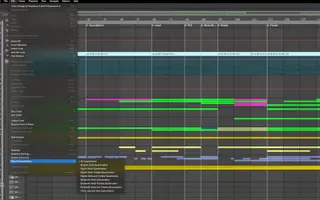
At A GlanceQuantizing MIDI in Ableton Live 12Quantizing Audio in Ableton Live 12Extracting Groove From Audio LoopsImprinting Groove Onto Rigid MIDI PatternsEditing MIDI Quantization Settings To Preserve Human FeelEditing Groove Templates for Timing and Velocity ShapingWhy Use Quantization In Music Production?Final ThoughtsFAQ ON How to Quantize in Ableton Live 12How do you quantize while playing AbletonHow to auto quantize in Ableton LiveWhat does Ctrl+J do in AbletonWhat is the shortcut key for quantize in Ableton Quantization in Ableton Live 12 gives you a practical way to refine timing without losing the musical identity of your performance. When you understand how these tools behave, you can strengthen the relationship between your drums, percussion, bass and chord work in a way that feels intentional rather than rigid. Timing becomes something you shape with awareness instead of something you fix at the end of a session. This kind of refinement becomes easier when you work with clean, well-recorded material. For example, our Magnetic Mag x Black Octopus Sound sample pack offers drums and percussion that sit comfortably in the grid, which makes it simple to hear where your own parts need attention. Having reliable samples in your session creates a clear reference point while you learn how Live handles timing. It also helps you understand how small timing shifts influence groove and energy across a full arrangement. Quantization works best when you treat it as part of the creative process rather than a last-minute repair tool. When you apply it with intention, it supports your production workflow and gives your tracks a stronger rhythmic foundation. Let us walk through how to use these tools in a way that strengthens feel, clarity and musical control. Quantizing MIDI in Ableton Live 12 When recording MIDI in Live, you have several paths to reliable timing. Record Quantization is the quickest way to keep takes organized while performing. Activate it from the Edit menu and choose a grid resolution that reflects the rhythm you are playing. Live will then align notes as soon as they enter the clip. This works well for drums, stabs and simple progressions. For more detailed control, switch to the MIDI Editor after recording. Select the notes you want to refine and open the Quantize settings. Here you can pick a grid size and set quantize strength. Lower strength values shift notes toward the grid without removing every nuance. Higher values create a firmer alignment. This gives you freedom to shape timing in a way that supports the arrangement. Some phrases need manual editing instead of full quantization. In those moments I zoom into the editor, adjust the grid size, disable snapping if necessary and move notes by hand. This helps when the performance includes intentional pushes, slight delays or small timing curves you want to preserve. Manual refinement often produces the most natural result! Quantizing Audio in Ableton Live 12 Audio timing relies on Warp Markers. Couple places on this recording where the transients aren’t lining up with the grid… easy fix! Once Warping is active, place markers at transients you want aligned. Double click on the transient (or non-transients if you need) and simply move them to the grid! These markers anchor timing in the clip and allow you to move specific events without reshaping the entire recording. This method works for drums, vocals, guitar, percussion or any performance that needs clean timing. Live also offers direct audio quantization. Select an audio clip, use the Quantize command and adjust settings in the menu. Live will detect transients and move them toward the grid. This is effective for loops or consistent patterns that require minor tightening. You can also hit CMND + A to select the whole cliip… …then hit CMND + U to quantize everything selected, AKA the whole clip. For subtle timing shifts, fewer Warp Markers produce smoother results. This helps avoid artifacts and prevents the audio from feeling pulled out of shape. When you want natural flow in a performance, smaller corrections often give better results than aggressive tightening. Remove a few of the warp markers and the audio will revert back to its original position, adding a bit more natural swing to the clip. Extracting Groove From Audio Loops If you like the swing and groove of a percussion loop or melody clip, apply the same groove to other bits on your track! Ableton Live includes a feature that many producers overlook. You can extract groove information from any audio loop and apply that timing shape to other clips. This allows you to create a unified rhythmic feel across a session, even when combining different instruments, samples or MIDI performances. No the swung shaker loop can match the same swing as the mandolin loop above (or vice versa) To extract groove, right-click an audio loop with a timing feel you respect. Choose Extract Groove and Live will place a new groove entry into the Groo
Summary of the article
At A GlanceQuantizing MIDI in Ableton Live 12Quantizing Audio in Ableton Live 12Extracting Groove From Audio LoopsImprinting Groove Onto Rigid MIDI PatternsEditing MIDI Quantization Settings To Preserve Human FeelEditing Groove Templates for Timing and Velocity ShapingWhy Use Quantization In Music Production? Final ThoughtsFAQ ON How to Quantize in Ableton Live 12How do you quantize while playing AbletonHow to auto quantize in Ableton LiveWhat does Ctrl+J do in AbletonWhat is the shortcut key for quantize in Ableton Quantization in Ableton Live 12 gives you a practical way to refine timing without losing the musical identity of your performance.
Read the full article for more details on EDM Dance Directory News.
Share this article:
Quantization in Ableton Live 12 gives you a practical way to refine timing without losing the musical identity of your performance. When you understand how thes...
Written and reviewed by our team. Technology may support research, but final content is human-authored.